Analysis on the logs of Logic apps
Approaches for collecting the logs of the logic apps are as follows: -
-
Enabling log analytics while creating the logic app (for consumption logic apps only)
-
While creating the logic app, if the plan type selected in Consumption, then it provides an option to enable the log analytics.
-
For Enable log analytics, select Yes.
-
From the Log Analytics workspace list, select the workspace where you want to send the data from your workflow run.
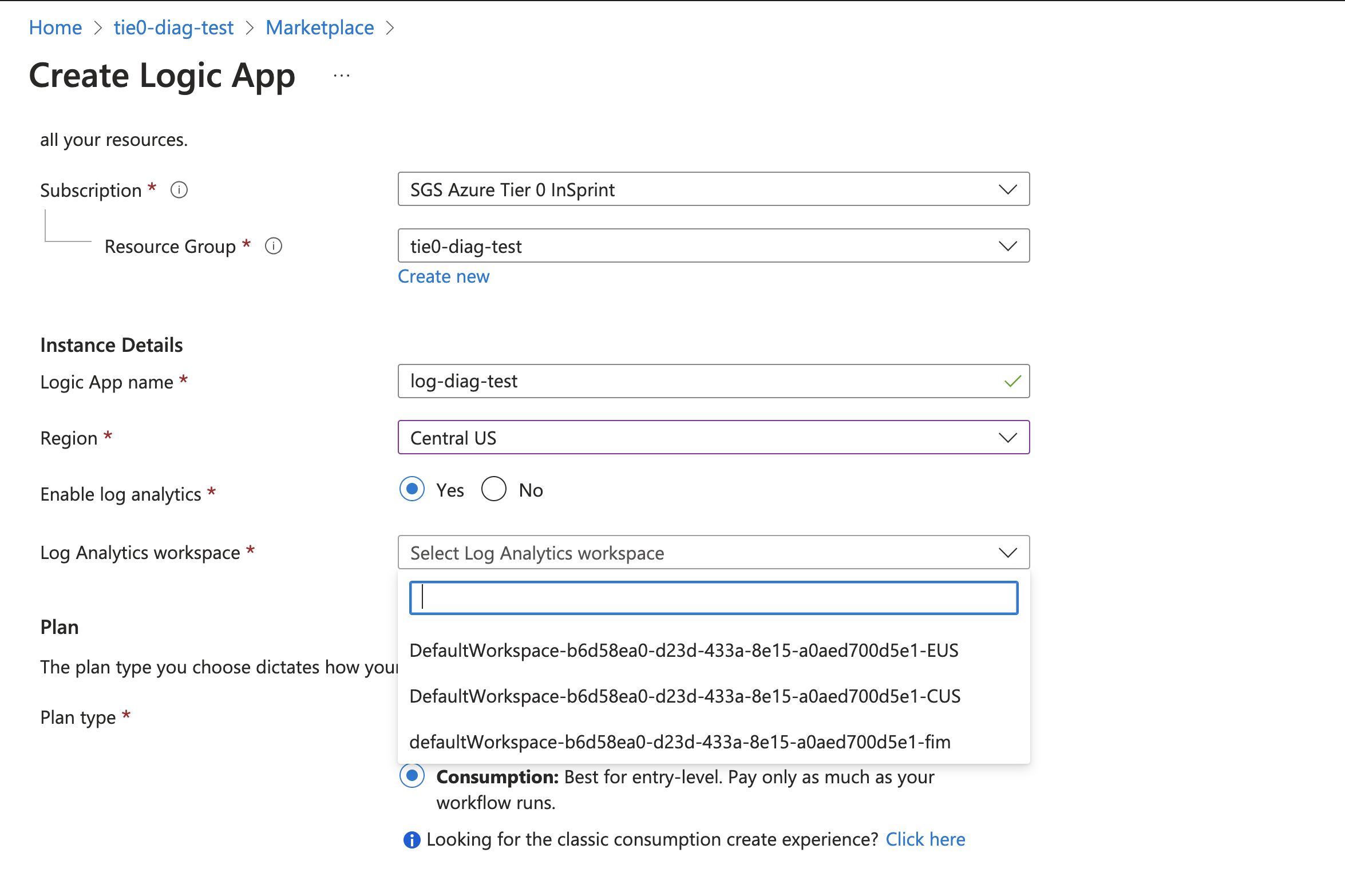
-
After this, the logic app is associated with the Log Analytics workspace. This step also automatically installs the Logic Apps Management solution in your workspace.
-
Reference: -
-
https://learn.microsoft.com/en-us/azure/logic-apps/monitor-workflows-collect-diagnostic-data?tabs=consumption
-
Limitations: -
-
This is only applicable for the consumption logic apps and not the standard ones.
-
The Log Analytics workspace list contains only the workspaces present in that subscription. This is not helpful in our case since we want to send the logs to the tier0 LAW present in a subscription different from the client.
-
Enabling diagnostic settings for the logic apps
-
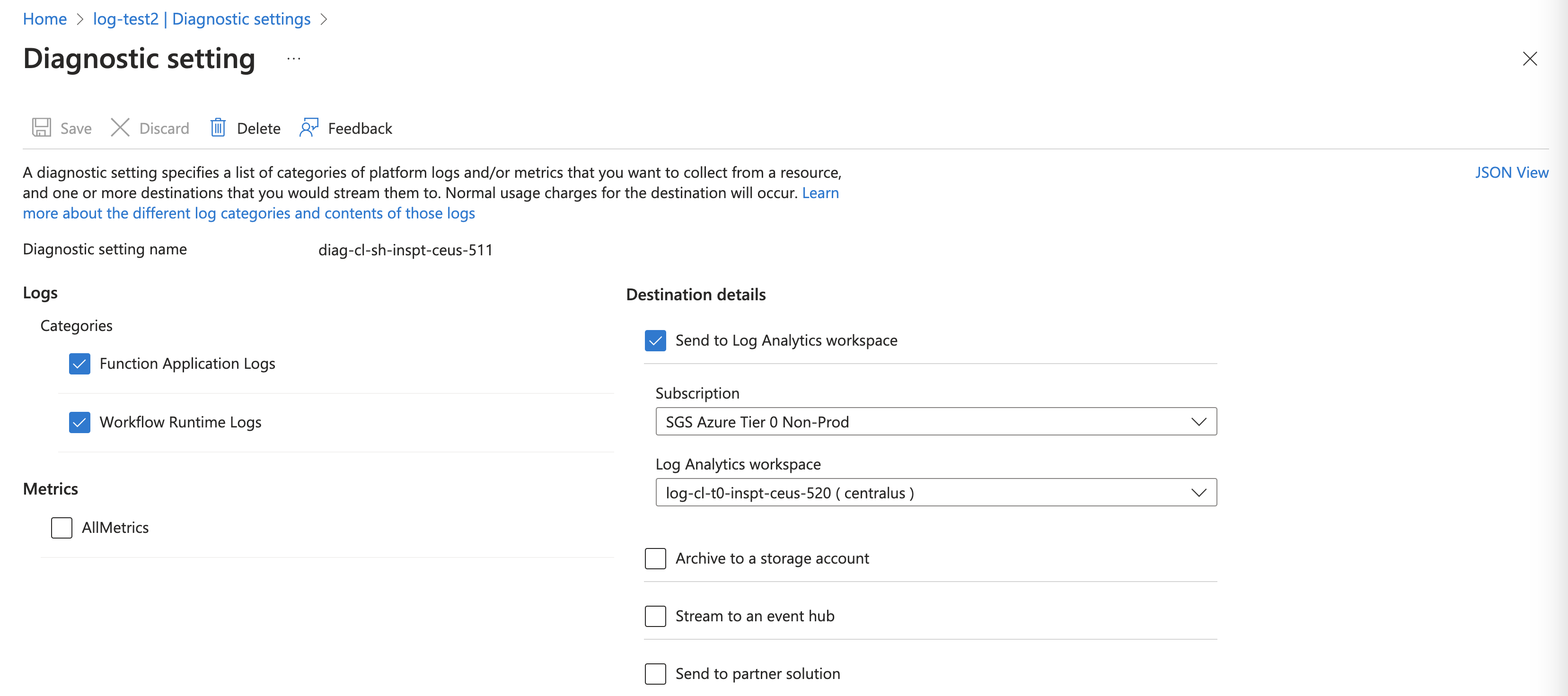
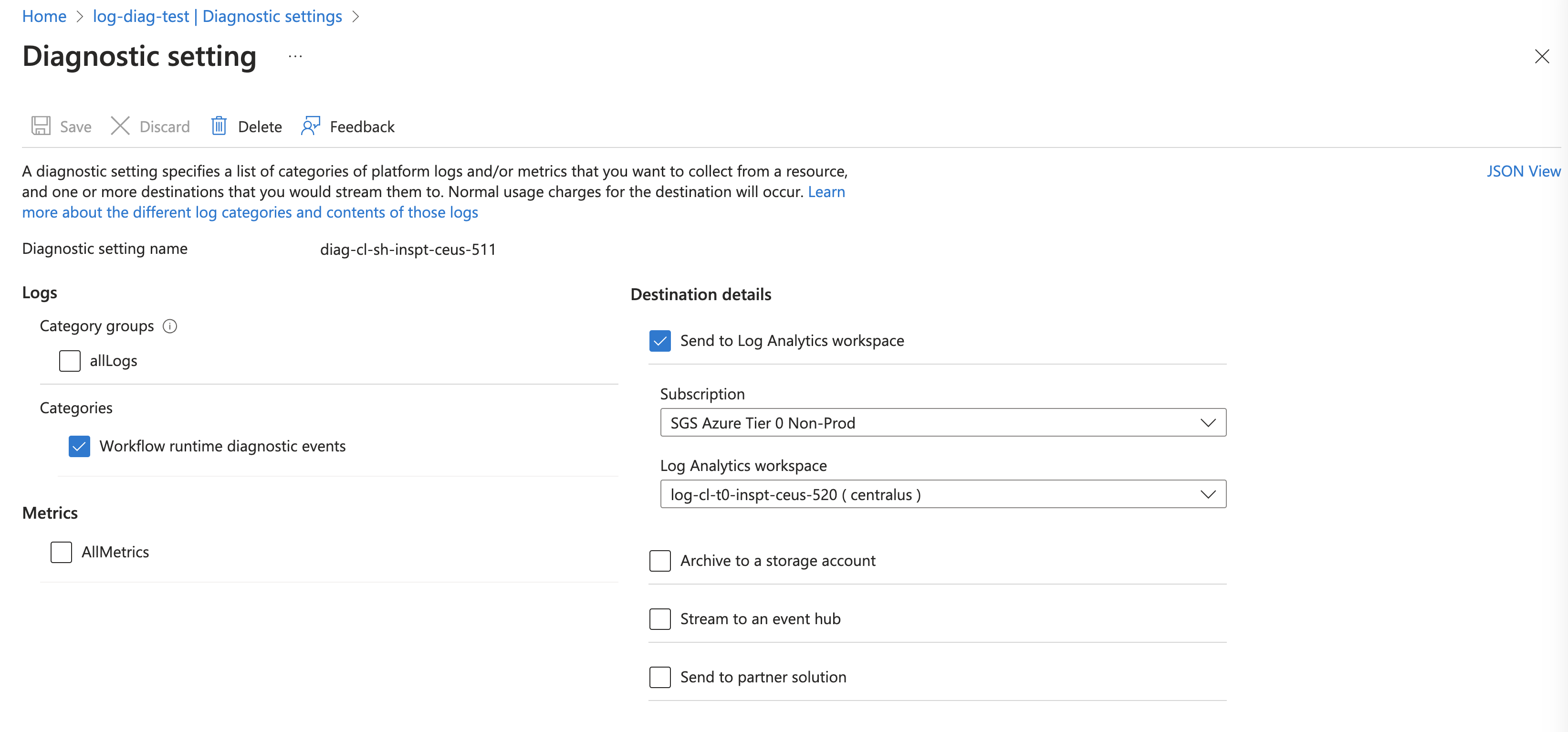
By enabling the diagnostic settings for the logic app, we can collect the workflow runtime logs.
-
In case of the consumption logic app, “Workflow runtime diagnostic events” Log category can be enabled.
-
In case of the standard logic app, it also associates itself with an app service plan, that’s why it has 2 log categories- “Workflow Runtime Logs” and “Function Application Logs”.
-
Currently in our system, we have diagnostic policy for the logic apps which only applies to the consumption logic apps and not the standard ones since the resource type is different in both. For consumption, it is “Microsoft.Logic/workflows” while for standard, it is “Microsoft.Web/sites”.
-
Because of the current policy for consumption logic apps, the diagnostic settings are getting applied, and the logs are flowing to the LAW.
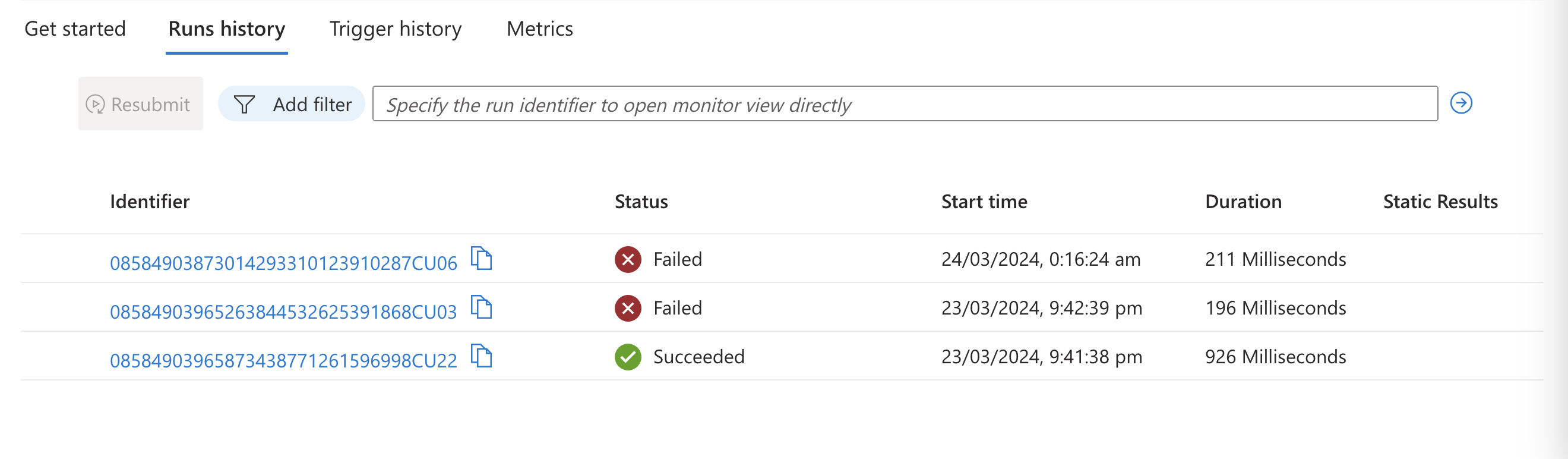
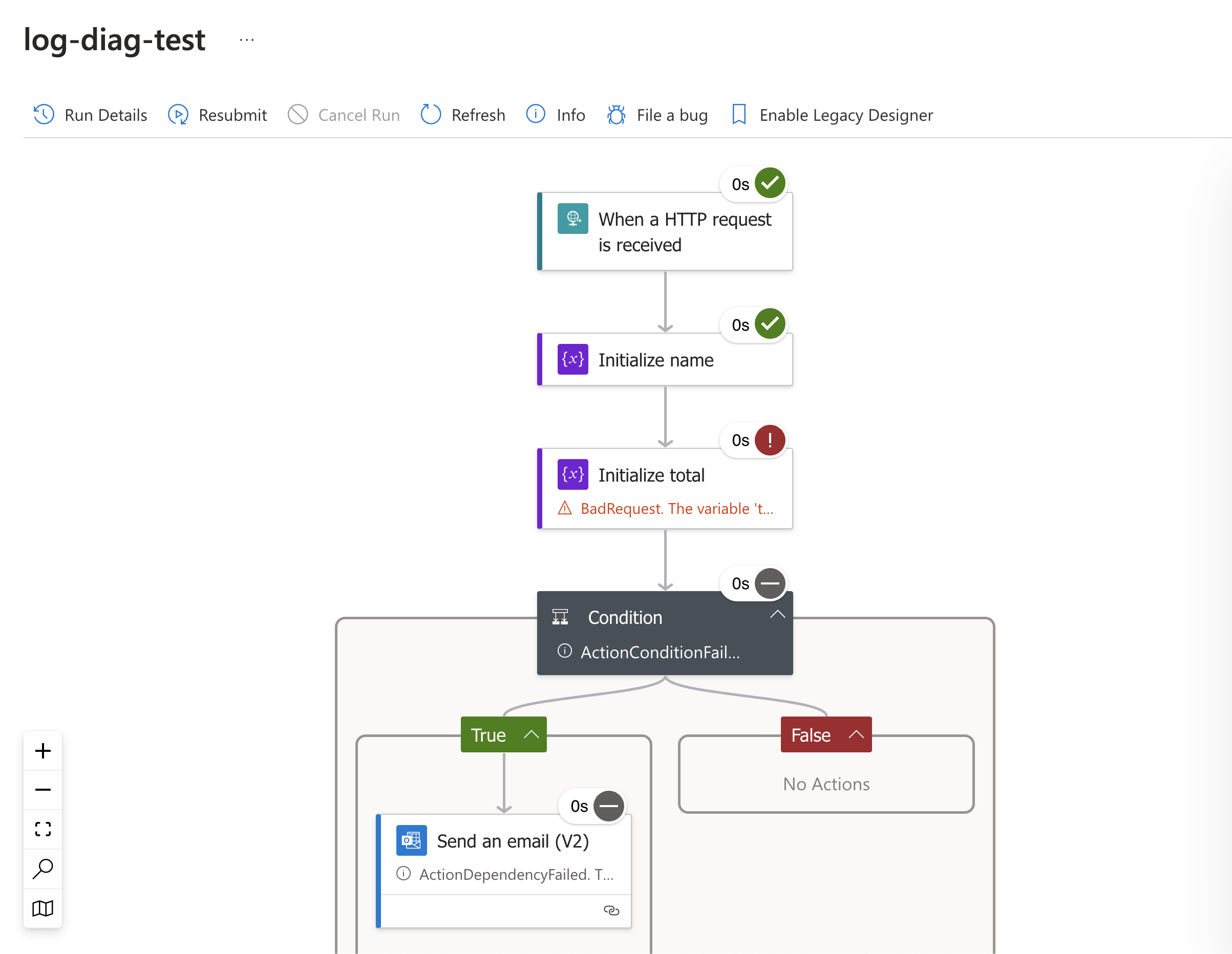
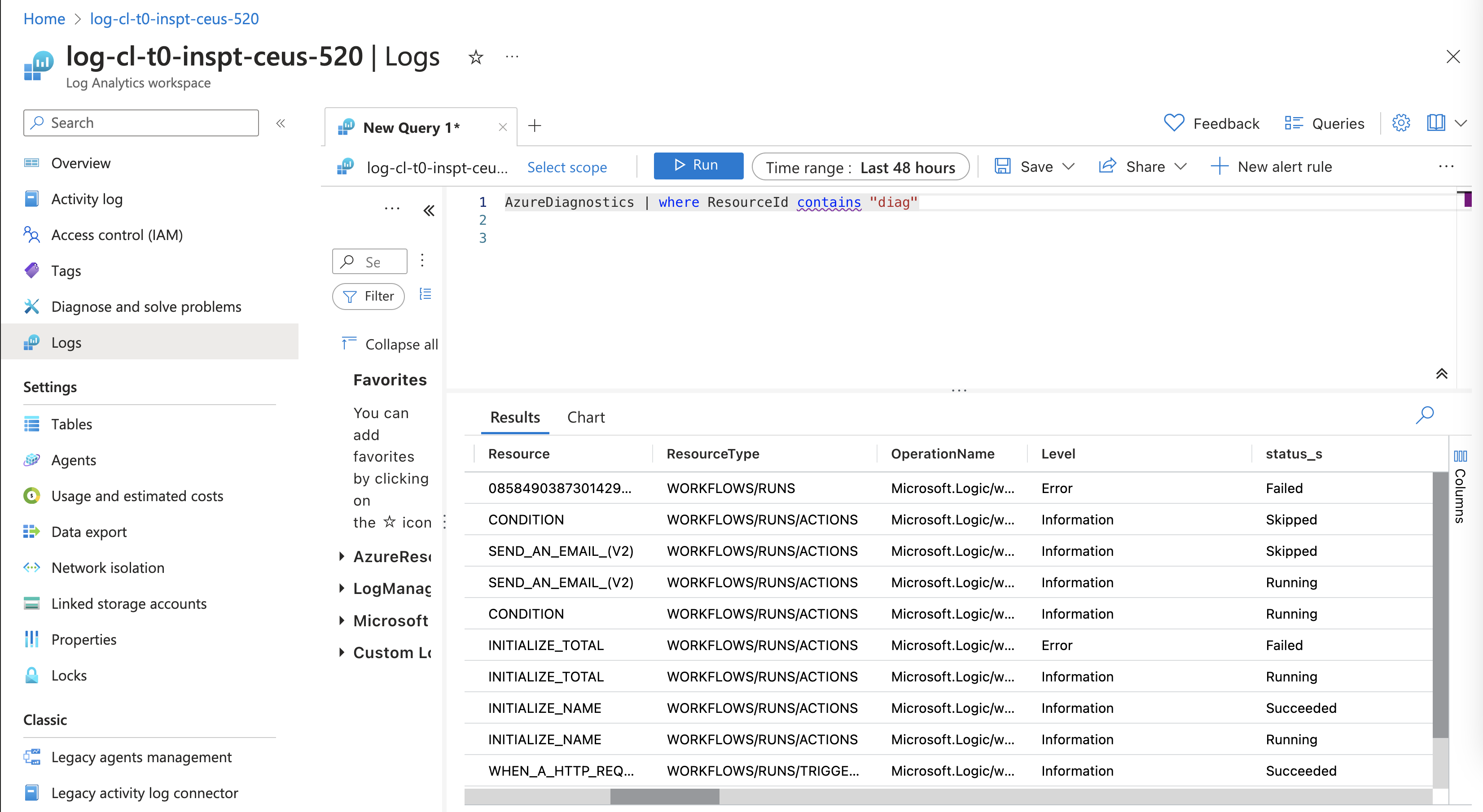
The logs contain the step-by-step status too i.e. it will show if the step of the logic app ran, skipped, failed, or succeeded.
Conclusion: -
The logs of the logic apps can be collected and sent to LAW by enabling its diagnostic settings. The workflow runtime logs give the step-by-step logs along with their status.
The diagnostic policy for the standard logic apps can also be included if there are chances of standard logic apps being created in the future.
For this, both the categories need to be enabled. Enabling the “Workflow Runtime Logs” will lead to the logs flowing into the “LogicAppWorkflowRuntime” table and enabling the “Function Application logs” will lead to the logs flowing to the “FunctionAppLogs” table.
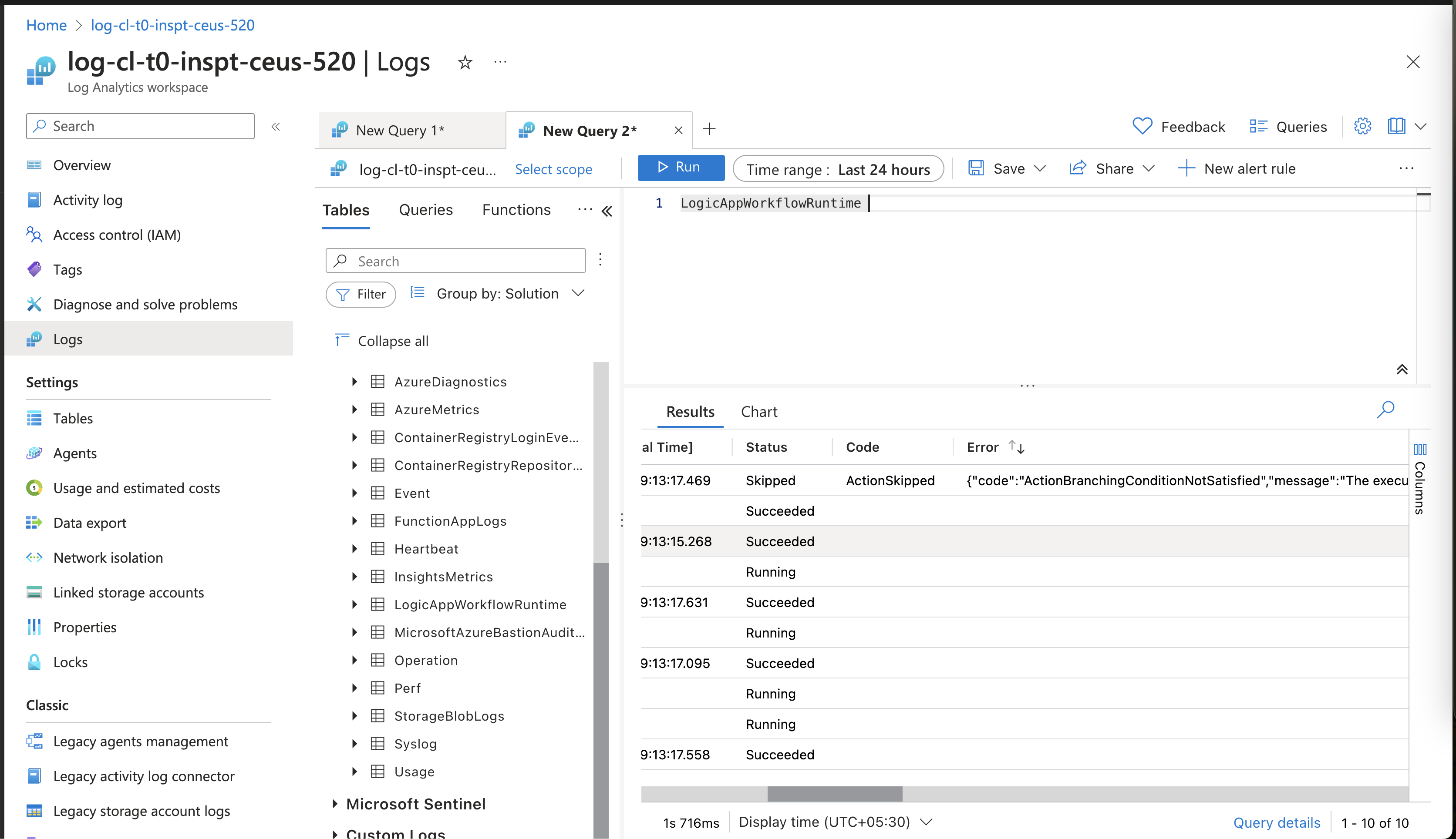
The error field will also display the reason for the step being skipped or getting failed.